shipcue docs
Set up shipcue in a Next.js app in about ten minutes. The handler is a plain (Request) => Response function, so it also runs in Hono, Remix, Bun, Deno and Cloudflare Workers.
0. Install shipcue
npm install shipcueUntil it's on npm, install the prebuilt release from GitHub. Nothing builds on install, so it works with npm, pnpm and Vercel:
pnpm add https://github.com/cyu60/shipcue/releases/download/v0.32.1/shipcue-0.32.1.tgzshipcue has three entry points: shipcue (config and the task prompt), shipcue/server (the handler and the Postgres store) and shipcue/react (the button). The MCP server runs as npx shipcue-mcp.
Stuck at any step? npx shipcue doctor says what is missing and how to fix it (see Check your setup). On shipcue Cloud, with no database of your own, npx shipcue init --cloud pk_… gives you the button for your project.
1. Create the table
Run sql/schema.sql on your database. It creates one table, shipcue_reports, and an index that keeps the queue fast. It works on Supabase, InsForge, Neon, RDS and plain Postgres.
2. Mount the handler
In app/api/shipcue/[...path]/route.ts:
import { Pool } from 'pg';
import { createShipcueHandler, postgresStore } from 'shipcue/server';
import { resolveConfig } from 'shipcue';

const pool = new Pool({ connectionString: process.env.DATABASE_URL });

const handler = createShipcueHandler({
  store: postgresStore(pool),
  config: resolveConfig({ areas: [{ value: 'editor', label: 'Editor' }] }),
  getReporter: async (req) => (await getSession(req))?.email ?? null,
  requireReporter: true,
  agentToken: process.env.SHIPCUE_TOKEN,
  onReport: async (report) => { /* email the team, post to Slack */ },
});

export { handler as GET, handler as POST };
Screenshots are stored as small data URLs unless you pass saveScreenshot(file, key) to upload them to S3 or Supabase Storage. A failure inside onReport never fails the report.
Retry-safe filing. The panel sends an idempotencyKey with each report: one per draft, the same on every retry of it. When a send times out but the report was saved (a stalled database), the retry gets the same report back (same id, status 200) instead of filing a copy, and onReport and broadcasters hear about it once. postgresStore needs the "Upgrading from 0.26" block of sql/schema.sql (one nullable column and a unique index per project); until you run it, reports file as before without the protection.
Pass saveVideo(file, key) to let reporters attach a screen recording or video (WebM, MP4 or MOV, up to 40 MB) through POST /reports/:id/video. On hosts that cap request bodies, upload from the browser with the button's uploadVideo prop instead.
Reporter portal. When getReporter reads a verified session (your auth cookie), add reporterPortal: true: GET /mine returns the signed-in reporter's own reports (status, fix line, PR, dates; never anyone else's, never diagnostics), and the panel's Yours list adds them, so it works on any device. Pins stay in each browser. Pair it with emailReporter({ mineLink }), and see My reports on shipcue's own site. Never turn it on when the reporter comes from the browser (the button's reporter prop): anyone could read anyone's reports. That is why shipcue Cloud projects do not offer it.
Open what you sent. Each report sent from a browser is kept there in full (text, type, priority, area, page, picked-out context, screenshot and file counts, video yes or no, alt texts, time; never the screenshot or video data), the latest 50, under about 200 KB. Click a report in the panel's Yours list to open it, read-only, with the status, fix line and PR from GET /mine when the handler offers it; Back returns to the list. It works with a custom submit too.
LocalReports. For a page whose button uses a custom submit, or when offline: <LocalReports /> from shipcue/react shows the reports sent from this browser and opens each one, from local storage only (no server calls). Props: text (the same keys as the button's), renderContext, style.
3. Add the button
import { ReportButton } from 'shipcue/react';

<ReportButton
  areas={[{ value: 'editor', label: 'Editor' }]}
  accentColor="#16203A"
  diagnostics={() => ({ route: location.pathname, lastAction: store.lastAction })}
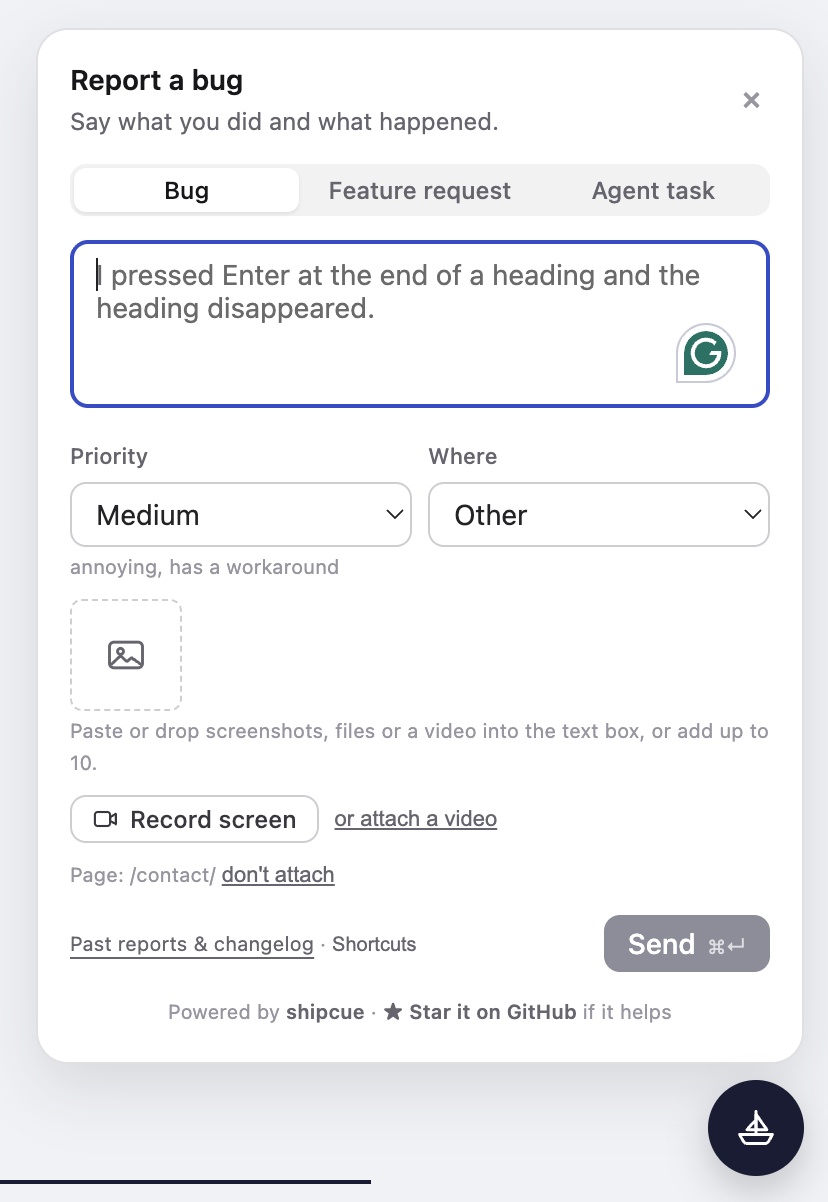
/>variant="inline"puts a small button in your header, which works better on phones where a floating bubble covers the controls.submit={(form) => action(form)}sends through a Next.js server action instead offetch. The form carriesidempotencyKey(one per draft, the same on a retry, new after a successful send): store it with a unique index and answer a repeat with the report already filed, and a stalled database can't leave copies.diagnosticsis a snapshot for whoever fixes the report. Keep it under 64 KB. If it throws, the report still goes through.reporter={user.email}says who is signed in on your site. It goes with each report in thex-shipcue-userheader; shipcue Cloud shows it as the reporter, and your own handler can read it ingetReporter. Your site vouches for it.- The panel has three tabs: Bug, Feature request and Agent task. An agent task is a direct instruction for an agent, and its prompt tells the agent the text came from whoever filed it. On a public page you may want
types={['bug', 'feature']}. - A small "Powered by shipcue · Star it on GitHub" line sits at the bottom of the panel. If shipcue helps you, a star really helps us;
watermark={false}turns it off. - Recent page errors are added to the snapshot as
recentErrors. Turn this off withcaptureErrors={false}. uploadVideouploads a recording or video yourself; without it the button posts it to the handler.- Move it. Drag the floating button, or the panel by its title: the two move together, the panel stays on screen and settles above or below the button when you let go. Reset position (⌃⇧H / Alt+Shift+H) puts it back;
movable={false}keeps it still. - Resize it. Drag the small grip on the panel's free corner to make it wider and taller; the text box takes the extra room. It stays on screen, never goes below the default size, and arrow keys work once the grip is focused. Kept in the browser; Reset position puts it back.
resizable={false}keeps the default size. - Copy prompt for my agent. A small link in the panel's footer copies a prompt for Claude Code or Codex: the app, the page, the form's choices and your areas, what was typed so far, any context and the snapshot. The agent asks for what is missing, then files it with the MCP tool
file_reportor a readycurlto your endpoint. - Select area. The tile next to the screenshot tile (⌃⇧A / Alt+Shift+A) tints the page; drag a rectangle and it stays, to adjust before capturing: drag inside to move it, eight handles resize it, or type a width × height in the small toolbar under it. Capture (Enter) attaches it; Capture & annotate opens it in an annotator; Esc cancels. The browser asks to share the tab only at Capture, once per open panel (the share is reused, and stops when the panel closes, the page hides, or after
captureKeepAlivems idle). The annotator has draw, arrow, box, highlight, text, blur, crop, colours, S/M/L lines, undo/redo and alt text, which is saved with the screenshot and shown on the board and the CueLog. The pencil on any pasted screenshot opens it there too.dimOnOpen(deprecated) tints the page while the panel is open, without blocking it. - Capture comes with the panel. When the floating panel opens, the page behind it is tinted: drag anywhere on it to select part of the page, adjust it and capture it, as Select area does, with no hotkey or button. A click or tap on the tint, or Esc, lifts it so the page is usable again (the panel stays open; a second Esc closes it); the Select area tile or ⌃⇧A brings it back. The panel stays above the tint and typing never captures.
captureOnOpen: on by default for the floating panel (also withtrigger={false}), off forvariant="inline";captureOnOpen={false}opts out. limits(e.g.{ maxScreenshots: 20 }) sets how many screenshots and how big a video may be when you send reports withsubmit; with the built-in endpoint the button reads them from the handler'sresolveConfig.textputs your app's own words on anything the panel or board says, e.g.{ seeReports: 'See your reports', send: 'Submit' };DEFAULT_TEXTlists every key.pastReportsHrefadds a Past reports link to the panel (pastReportsLabelchanges its text).uploadVideouploads a video straight to your storage; post its URL to/reports/:id/videoand accept it with the handler'sacceptVideoUrl. Use it past Vercel's 4.5 MB request limit.resolveConfig({ allowFiles: true })takes PDFs, logs and other files next to screenshots (never HTML, SVG or scripts).- The panel shows the page it will attach, with a "don't attach" link.
Keyboard shortcuts
The panel opens from the keyboard on any page, on the tab you ask for. Whatever is highlighted on the page comes along in an editable Context box (remove it with one click), so you can select a paragraph and turn it into an agent task in one go. When nothing is highlighted, getContext={() => selectedRowsAsText()} lets your app supply what is selected, like rows or blocks. Agents see it as its own Context section in the task prompt.
- Agent task:
⌘Jon a Mac,Alt+Shift+Jelsewhere - Bug:
⌃Bon a Mac,Alt+Shift+Belsewhere - Feature request:
⌃Fon a Mac,Alt+Shift+Felsewhere - Send:
⌘↵orCtrl+↵on every tab (never mid-composition in an input method). Close:Esc
On Windows and Linux, Ctrl+J, Ctrl+B and Ctrl+F already belong to the browser and to editors, so shipcue stays off them. Pick your own with hotkeys ("Mod" is ⌘ on a Mac and Ctrl elsewhere), or pass hotkeys={false} to turn them off:
<ReportButton hotkeys={{ task: ['Mod+J'], bug: ['Mod+Shift+B'], feature: [] }} />To open the panel from your own menu or command palette, call openReport('task') from shipcue/react.
Your own tabs
Apps that already have their own flow, like an agent-task composer backed by their API, can put it in the same panel as a tab of its own. It gets the draft so far and a close function, and a hotkey or openReport(id) opens it:
<ReportButton
  types={['bug', 'feature']}
  hotkeys={{ agent: ['Mod+J'] }}
  extraTabs={[{
    id: 'agent',
    label: 'Agent task',
    title: 'New agent task',
    render: ({ text, context, close }) => <TaskComposer draft={text} context={context} onDone={close} />,
  }]}
  onOpenChange={(open) => setPanelOpen(open)}
/>
closeReport() closes the panel from anywhere. Already have a help or support button? Pass trigger={false} so shipcue draws no button of its own, and call openReport('bug') from your menu.
Only for testers? Pass showParam="shipcue" and shipcue stays off (no button, no hotkeys) until someone opens the page with ?shipcue=true. It is remembered for that tab; ?shipcue=false turns it off again.
Check your setup
Run this in your app's repo. It prints one ✓ or ✗ line per check, with the exact fix under each ✗, and exits non-zero if any fail:
npx shipcue doctor
npx shipcue doctor --url https://your.app/api/shipcue- shipcue is installed, and which version (and whether a newer release is out).
- No signed
release-assets.githubusercontent.comURL inpnpm-lock.yamlorpackage-lock.json. It expires in about an hour and breaks every later deploy; the doctor prints the swap to the stable URL. - The handler route exists (
app/api/shipcue/[...path]/route.ts, or--route <file>). - The env vars it reads (
DATABASE_URL,SHIPCUE_TOKEN) are in.env*and, when the project is linked, on Vercel. Values are never printed. - With
--url:/capabilitiesanswers, the agent API takes your token, and the tables exist with RLS on and every column. A missing column prints the "Upgrading from …" lines to run.
On shipcue Cloud: npx shipcue init --cloud pk_… prints the env line and a small ShipcueButton component for Next.js; --write adds them.
4. Connect an agent
claude mcp add shipcue \
  -e SHIPCUE_URL=https://your.app/api/shipcue \
  -e SHIPCUE_TOKEN=... \
  -- npx shipcue-mcp
The agent gets these tools: file_report (files a report for a person, with no token needed; the panel's Copy prompt for my agent link sets it up), list_reports, claim_next_report, get_report, claim_report, release_report and close_report. A claimed report arrives as a task prompt with the description, page, screenshots, app snapshot and what to do next: reproduce, write a failing test, fix, close with the PR link.
5. Show the queue and a changelog
Let people see what is waiting and what got fixed. Switch the board on in the handler, then drop the component on any page:
createShipcueHandler({ ..., board: true })   // or (req) => isSignedIn(req)
                                             // boardScreenshots: true also shows screenshots (opt-in)

import { ShipcueBoard } from 'shipcue/react';
<ShipcueBoard endpoint="/api/shipcue" />        // or <ShipcueQueue />, <ShipcueChangelog />
The board lists open and in-progress reports, most urgent first, and every fixed report with the resolution it was closed with, latest first. It never shows who filed a report, the page it came from, diagnostics or attachments. Close reports with a one-line, user-facing resolution and the changelog writes itself. It updates live as reports come in, and each viewer can switch between pills and tabs, cards and a list. See it on shipcue's own CueLog.
The CueLog table
For your team: every report in full, claimed and worked by people and agents together. Give the handler a team option with getMember (who is signed in, and their role: owner, member or viewer) and claimants (the people and agents a report can go to), then render <CueLogTable endpoint="/api/shipcue" /> on a signed-in page. Claim a report, assign it to a teammate, or queue it for an agent: that agent's claim_next_report returns it first. Give each agent its own token with the agents option and a lease with leaseSeconds; an agent that stops sending heartbeat_report loses the report back to the queue, and submit_for_review moves it to In review with the PR link. Run the "Upgrading from 0.12" lines in sql/schema.sql first. Or use shipcue Cloud, where all of this is hosted.
6. Broadcast and listen
Tell people or agents when a report is filed, claimed, released, closed or gets a video. Each broadcaster gets the events it asks for; one that fails never fails the request.
import { slack, webhook } from 'shipcue/server';

createShipcueHandler({ ...,
  broadcasters: [
    slack({ webhookUrl: process.env.SLACK_WEBHOOK }),
    webhook({ url: 'https://mac-mini.tailnet.ts.net/shipcue', secret: process.env.HOOK_SECRET, events: ['report.filed'] }),
  ],
})
An agent that would rather not open a port can listen instead. shipcue-listen polls the queue and runs a command for each event, with the event as JSON on stdin:
SHIPCUE_URL=https://app.example.com/api/shipcue SHIPCUE_TOKEN=... npx shipcue-listen --on filed -- claude -p "Fix the newest report in the shipcue queue"Events: filed, assigned (queued for this agent), claimed, released, closed, video. shipcue Cloud writes the launchd or systemd file that keeps it running (Run a listener).
One digest instead of a message per event
Turn on digest and a cron gets one summary per hour or day: what was filed, fixed (with the fix line and PR), reopened, claims stuck past their lease, how many are still open and the oldest waiting. Never who filed it, the page or the app snapshot.
import { slackDigest, emailDigest } from 'shipcue/server';

createShipcueHandler({ ..., agentToken: process.env.SHIPCUE_TOKEN,
  digest: { every: 'day', send: slackDigest({ webhookUrl: process.env.SLACK_WEBHOOK }) },
})

# Vercel Cron, GitHub Actions or launchd, once a day:
curl -X POST https://app.example.com/api/shipcue/digest -H "Authorization: Bearer $SHIPCUE_TOKEN"
Without send it returns the digest as Markdown, ready for a daily note or an outliner log. Quiet periods send nothing (sendEmpty to send anyway); digest(store, { since, until, format }) builds one anywhere.
7. Close the loop with GitHub
Let pull requests move reports. A PR whose title, body or branch names a report (its full id or first 8 characters, say fix/919f5ca2-github-loop) moves it to In review with the PR link; merging it marks it Fixed ("Merged in #N"); closing it unmerged puts it back in the queue. Ids that are not reports in this queue are ignored.
createShipcueHandler({ ...,
  github: {
    secret: process.env.SHIPCUE_GITHUB_SECRET,
    // Optional: stay in review until production serves the merge commit, then "live in abc1234".
    liveCheck: { url: 'https://app.example.com/api/version' },
  },
})
In the repository: Settings → Webhooks → Add webhook, Payload URL https://your.app/api/shipcue/github, content type application/json, the same secret, and only the Pull requests event. liveCheck is checked when the board, the CueLog or an agent reads the queue (at most once a minute), or call handler.checkLive() from a cron. On shipcue Cloud, Setup gives each project its webhook URL and secret.
HTTP API
Everything except filing a report needs Authorization: Bearer $SHIPCUE_TOKEN. Leave agentToken unset to switch the agent API off.
POST /reports                 file a report (multipart form, from the button)
GET  /reports?status=open     the queue, most urgent first
GET  /reports/:id             one report plus its task prompt
POST /reports/next/claim      take the most urgent open report (204 when empty)
POST /reports/:id/claim       take a specific report (409 if someone has it)
POST /reports/:id/release     give it back to the queue
POST /reports/:id/close       { "status": "fixed" | "wontfix", "resolution": "PR link" }
POST /reports/:id/note        { "text": "..." }: a note on the report's history
POST /digest                  { since?, until?, every? }: the last period's digest (with the digest option)
GET  /board                   no token: the queue and the changelog (only with board on)
GET  /board/version           no token: changes whenever a report does (for a live board)
GET  /capabilities            no token: what the handler takes (video, files, limits) and the shipcue version it runs
POST /github                  GitHub's signed pull_request webhook (only with github on)
What a report holds
- Type: bug, feature request or agent task
- Priority: low, medium, high or blocking
- Area: the parts of your app you list, plus Other
- Description, 10 to 4,000 characters
- Up to 3 screenshots, 5 MB each, shrunk in the browser first
- Context: text picked out on the page, up to 20,000 characters
- Page address, browser and your app snapshot
- Status: open, claimed, fixed or won't fix, with who claimed it and the resolution